
How to transfer stock between locations in Cin7's WMS App
Transfer stock in Cin7 WMS with confidence. Learn the full workflow from pick to receipt, and avoid costly inventory mismatches.
TUTORIALS
Cin7 Core WMS
How to transfer stock between locations in Cin7's WMS App
Ryan Behnken, Systems Specialist @ Fiskal


Watch a video version of this tutorial here, or continue reading below

Introduction: stock transfers are a financial lever, not just logistics
You send 300 units across town. Three days later, your store manager still hasn’t received them. Meanwhile, your online store oversells that same item.
As your business expands across multiple warehouses, 3PLs, or retail locations, stock transfers evolve from operational task to financial control point.
Missed scans, skipped steps, or half-finished receipts don’t just cause confusion, they throw off stock levels, inflate COGS, and erode customer trust.
At Fiskal, we help brands use Cin7 Core to track inventory with audit-level accuracy. In this guide, Systems Specialist Ryan walks through a clean, end-to-end transfer workflow using the Cin7 WMS app, from pick to reconciliation, so your team never loses track of stock in motion.
Step 1 - Create or locate the transfer order
Problem: You need to move stock, but if it's not logged, it's already gone.
Impact: Inventory ends up in limbo, counted in neither warehouse, but promised to both.
Fix: Start with a clearly tracked transfer order.
From the Cin7 Core Desktop App:
Go to Inventory → Transfers → New Transfer
Select From and To locations (e.g., Main Warehouse → Retail Store)
Add SKUs and quantities
Save; it will appear as a Pending Transfer in the WMS app
Fiskal Tip: Confirm your warehouse/bin setups first. Mismatched locations are a common cause of failed syncs.
Problem: Staff can't fulfil what they can't see.
Impact: Transfers sit idle or get duplicated because no one knows what’s been assigned.
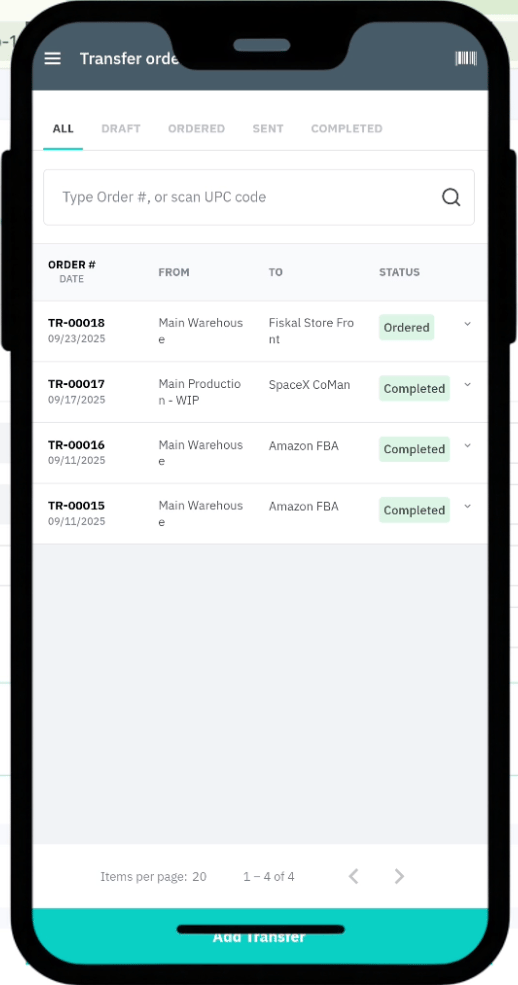
Fix: Use filters to surface the right orders in the app.
In the WMS App:
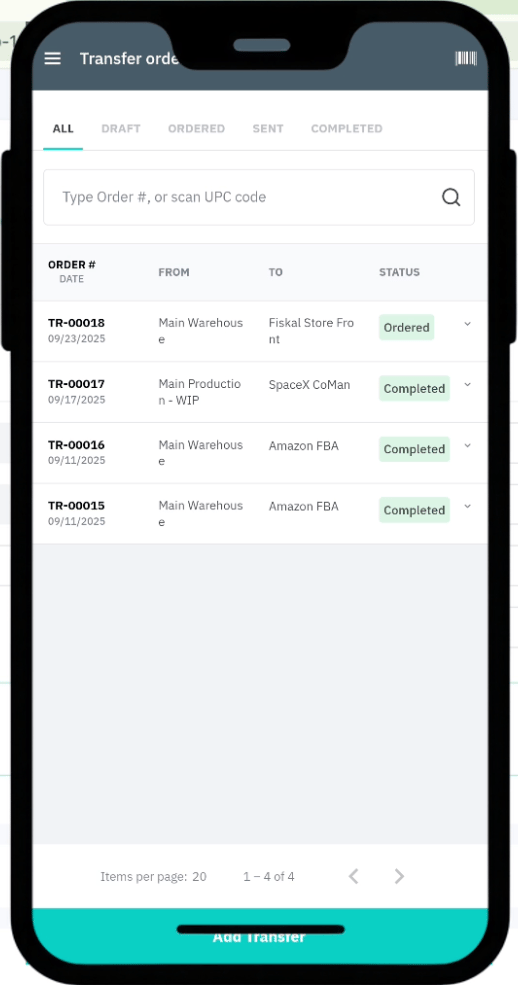
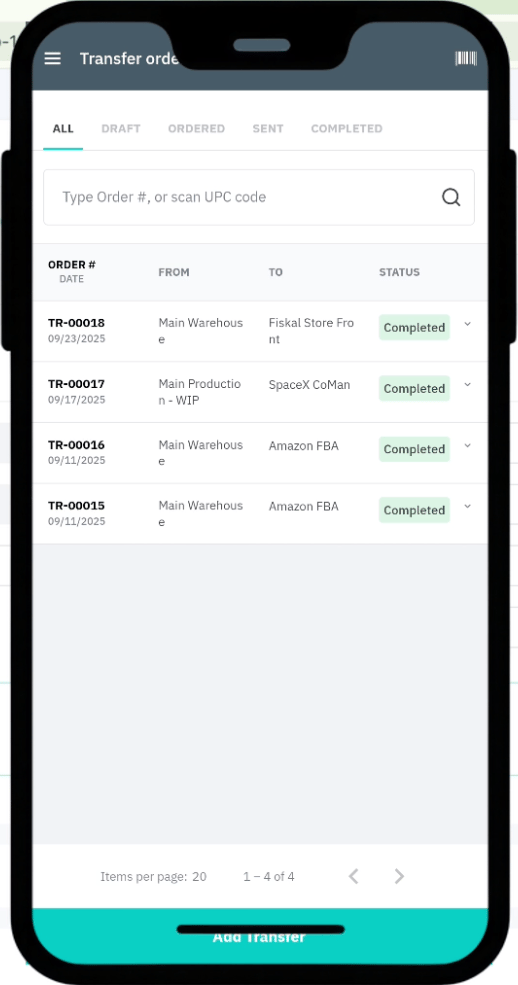
Go to Stock Transfer
Filter by:
From Location – origin site
To Location – receiving site
By Order – view all for your assigned location
Tap Ordered Transfers to begin picking
Step 2 - Access the transfer in the WMS App
Step 3 - Pick and send inventory from the source location
Problem: Skipping the “Send” step shows stock in both locations.
Impact: Inflated availability and accidental double-selling.
Fix: Pick, scan, and confirm before sending.
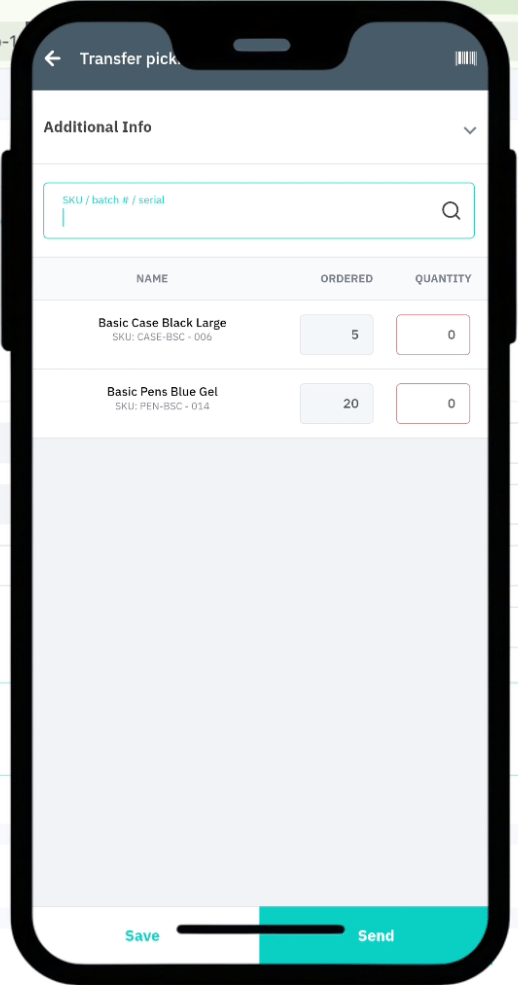
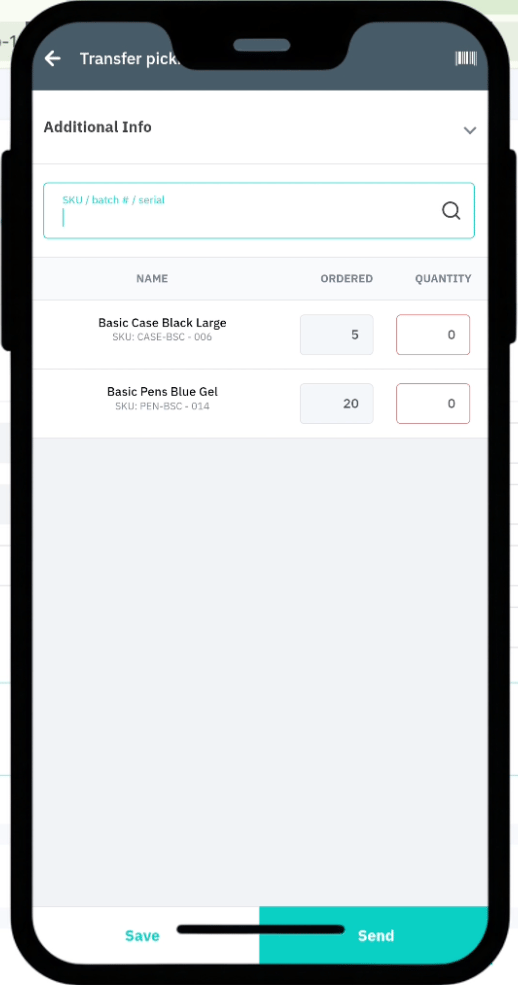
Select the transfer order
Scan product barcodes or confirm quantities manually
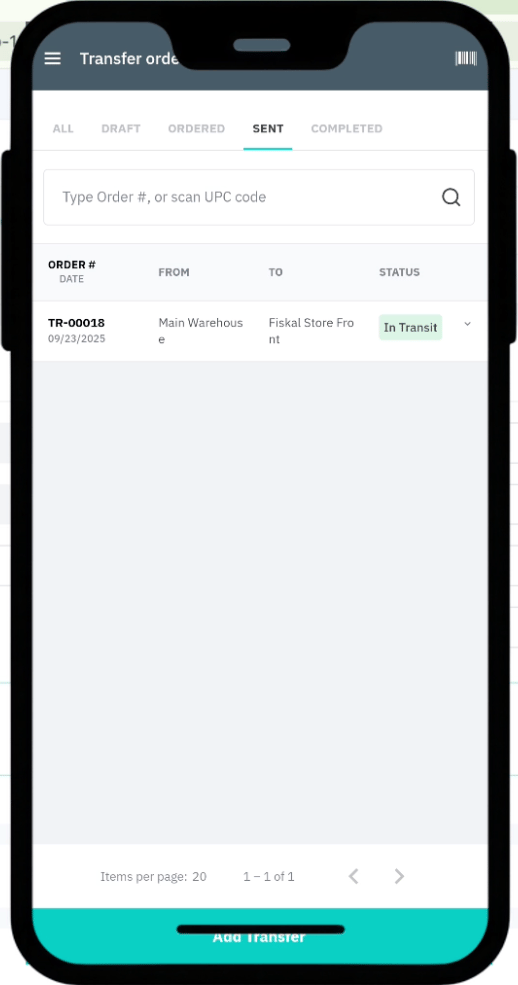
Tap Send to move items to “In Transit”
Example:
✅ 20 × Blue Gel Pens
✅ 5 × Red Pencil Cases
Pro Tip: Always scan from the correct bin, especially if the same SKU lives in multiple zones. Cin7 prompts for bin selection when required.
Step 4 - Receive stock at the destination location
Problem: Items are picked and sent, but never received.
Impact: They stay stuck in “In Transit,” skewing on-hand stock and accounting.
Fix: Complete the receipt using the WMS app.
At the receiving location:
Go to Stock Transfer → To Location
Open the In Transit order
Scan each item’s barcode
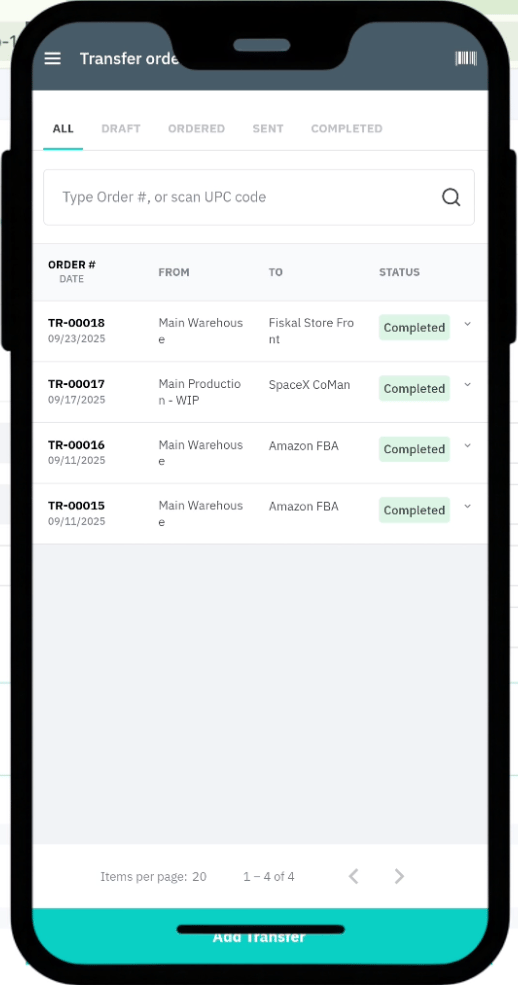
Confirm quantities and tap Finish
Fiskal Insight: Still emailing spreadsheets for handoffs? WMS gives you a timestamped, auditable trail, and instant inventory updates.
Step 5 - Verify and reconcile the transfer in Cin7 Core
Problem: The warehouse is right, but the books are off.
Impact: Unverified transfers distort margins and working capital.
Fix: Always reconcile completed transfers in Cin7 Core.
On desktop:
Go to Inventory → Transfers
Open the completed transfer
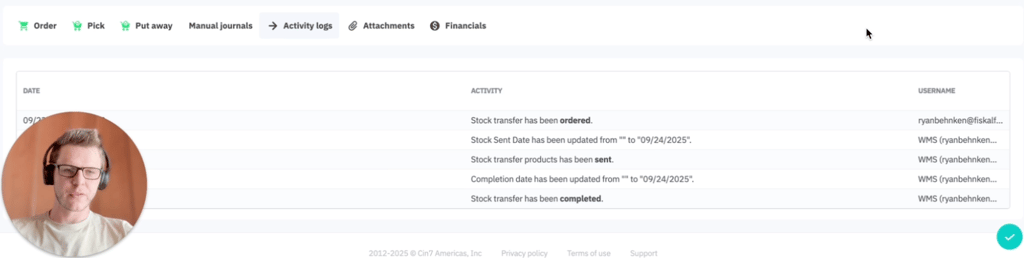
Confirm status: Picked and Put Away
Review:
Timestamps
Responsible users
SKUs and quantities moved
Fiskal Pro Tip: Review your in-transit account monthly. Unreconciled transfers can bloat inventory and distort financials.
Step 6 - Avoid these 4 common stock transfer mistakes
These are the top errors we see during client audits, and how to fix them:
Transfer Sent Late → Double Counted Inventory
Cause: User skips "Send" and goes straight to "Receive"
Fix: Enforce “Send before Receive” in your SOPs
Missing Bin Assignments → Ghost Stock
Cause: SKUs aren’t assigned to bins during pick/receive
Fix: Assign default bins for every active SKU
No Barcode Scans → Dirty Data
Cause: Manual confirmation instead of scanning
Fix: Enable Mandatory Scanning in WMS settings
Left “In Transit” → Accounting Errors
Cause: Receive step skipped or failed sync
Fix: Turn on sync alerts + run periodic transfer audits
Fiskal Fix: During a recent WMS audit, we uncovered over $120K in “ghost stock” tied up in old transfers. Our automation flagged, reconciled, and restocked it within days.
Step 7 - Optimize multi-location transfers with Fiskal
Transfers don’t just move stock, they shape your financial clarity.
Fiskal’s Cin7 Optimization Service includes:
Custom transfer workflows across warehouse and retail
Bin-level tracking at send and receive
Monthly reconciliation of in-transit accounts
Integration tests across Shopify, QuickBooks, Xero & more
Case study snapshot: luxury leather products
The challenge: the brand was managing stock across retail showrooms and warehouses, but 15+ unconfirmed transfers were quietly tying up inventory and wrecking replenishment cycles.
The fix:
We unified the transfer process for both fulfillment and retail teams
Enabled bin-level scans at both ends
Introduced aging reports to catch stuck transfers
The result:
$85K in “lost” inventory recovered
99.3% inventory accuracy
Cleaner month-end closes and more confident reorders
“We thought it was a transfer issue. Fiskal showed us it was a visibility issue. Now our data is clean, and so are our shelves.”
Still wrestling with stuck transfers or unreliable inventory?
If your team struggles with transfers that never reconcile, items stuck “In Transit”, or manual workarounds to close stock gaps, it’s time for a system health check.
📞 Or call us directly: (954) 415-7895
Share on your socials.


Finance Ops:
Bookkeeping
Controlling
FP&A
Industries
Why Fiskal:
About us
Customer Stories
Careers
Contact Us
Contact Details:
+1 (954) 415-7895 or +1 (267) 717-7923
info@fiskalfinance.com
Offices:
Florida
New York
Pennsylvania
Stellenbosch
Resources
Blog
The Fiskal Score
Cin7 Academy
FAQs
Privacy Policy




Cin7 Solutions:
Problems We Solve
Integrations
Report Accuracy
Forecasting & MRP
Cin7 Implementation
Cin7 Support