

How to set up and configure the Cin7 Core WMS App (step-by-step)
Set up Cin7’s WMS app step-by-step. Avoid sync errors, enable bin tracking, and streamline fulfillment from day one.
TUTORIALS
Cin7 Core WMS
How to set up and configure the Cin7 Core WMS App (step-by-step)
Ryan Behnken, Systems Specialist @ Fiskal


Watch a video version of this tutorial here, or continue reading below

Introduction: why Cin7's WMS App matters (and how Fiskal makes setup easier)
Lost stock. Delayed orders. That awkward moment when a picker swears the product was “just here yesterday.”
If that’s a familiar scene in your warehouse, you’re not alone.
As businesses scale, spreadsheets and manual systems quietly become liabilities, racking up labor costs, missed orders, and customer complaints before leadership even sees the damage.
That’s where Cin7 Core’s Warehouse Management System (WMS) comes in: a mobile-first app that puts real-time fulfillment, inventory accuracy, and barcode scanning directly into your team’s hands.
But here's the catch: even powerful tools underdeliver when they're misconfigured.
At Fiskal, we help businesses avoid the most common Cin7 setup pitfalls, like sync errors, access mismatches, or poorly mapped workflows that quietly drain your ROI.
In this guide, Systems Specialist Ryan walks you through a practical, no-fluff setup that works, with expert tips and gotchas to look out for.
Step 1 - Access the WMS App
From the Cin7 Core dashboard:
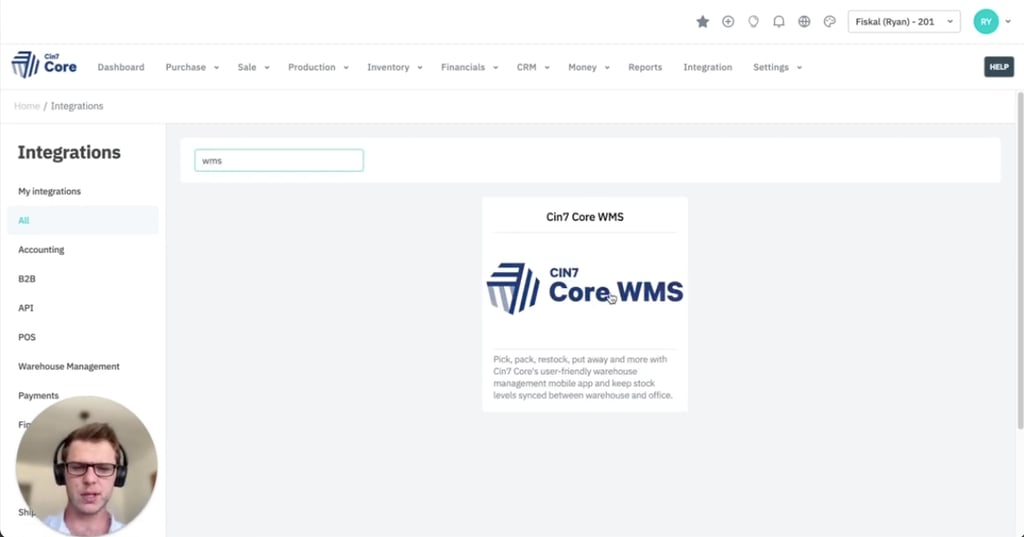
Go to the left-hand menu → Integrations → WMS App
If your UI has a horizontal nav bar, scroll or search “WMS”
The app is included with every Cin7 Core account — it just needs the right setup.
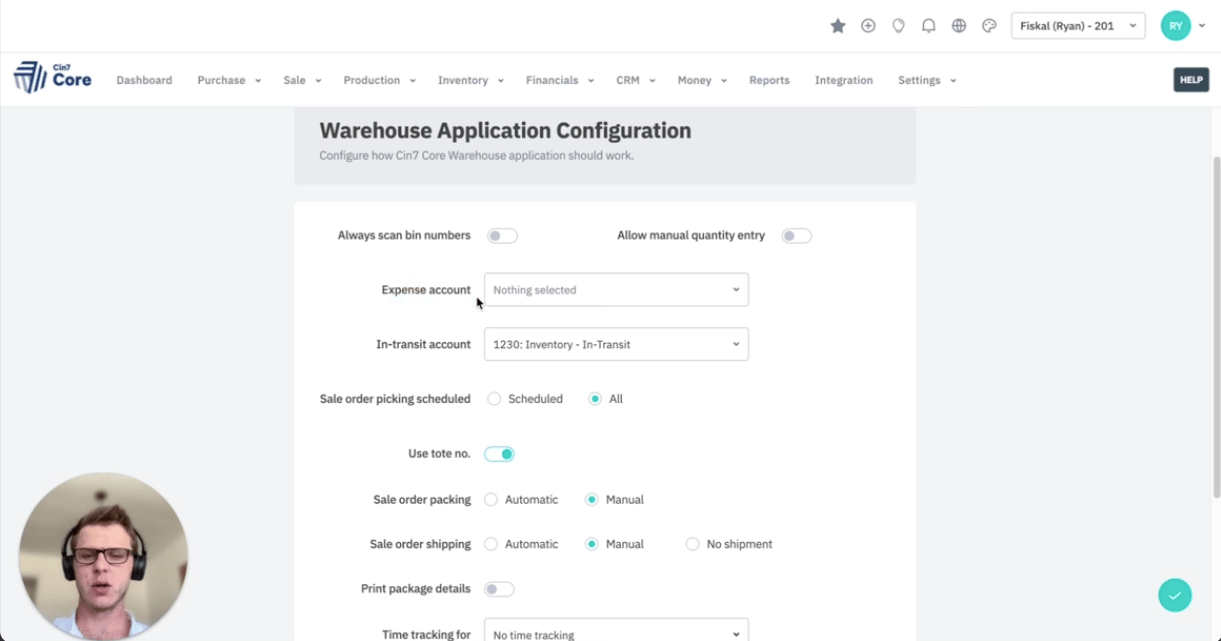
2.1 Enable bin numbers
Problem: stock goes missing or gets picked from the wrong shelf.
Why it happens: without bin-level tracking, teams guess locations (and mistakes pile up).
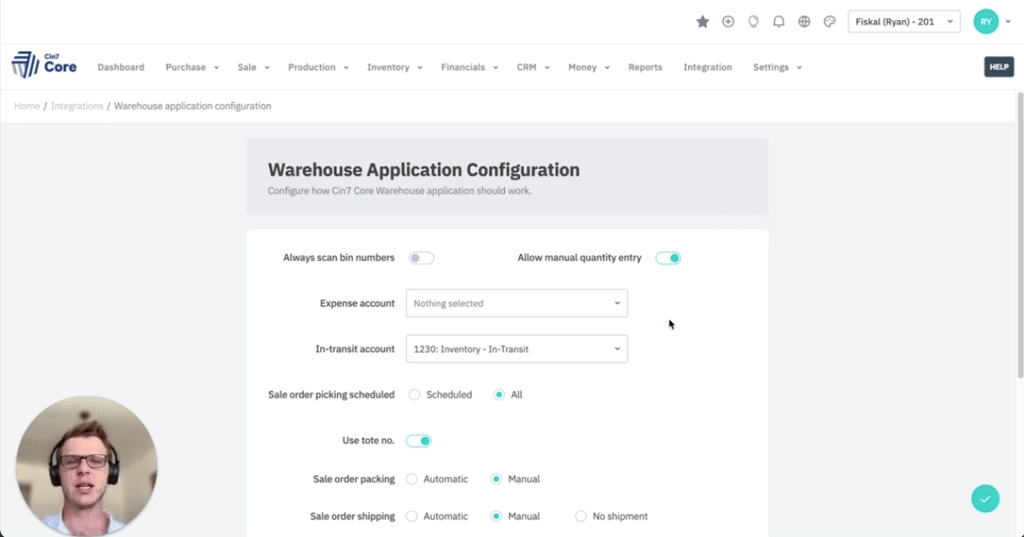
Solution: enable bin scanning so staff must scan the correct bin to complete a pick or receive.
Feature: Bin-level enforcement during pick and receive
Advantage: Staff can’t complete a task without scanning the right location
Benefit: Reduces mispicks, speeds up training, enables location-specific reporting
Best for: multi-zone or fast-moving warehouses
Skip only if: you run a small, single-zone setup with minimal SKUs
2.2 Manual quantity entry
Problem: scanning 500 pens one-by-one? Not happening.
Why it matters: high-volume SKUs need speed, but accuracy still counts.
Solution: turn on manual quantity entry to allow staff to bulk-enter counts for trusted SKUs.
Feature: quantity override option
Advantage: speeds up bulk order fulfillment
Benefit: balances efficiency and accuracy
Use manual entry for trusted teams or low-risk SKUs. Leave it off for high-value or error-prone items.
2.3 Expense and in-transit accounts
Problem: one wrong setting can break your accounting.
Real talk: we've seen teams spend weeks fixing COGS mismatches that started with a single unmapped account.
Solution: map these accounts before going live, and double-check with your finance team.
Common mappings checklist:
Expense account → Stock Write-offs or Inventory Adjustments
In-transit account → Inter-warehouse Transfers
Fiskal pro tip: even one incorrect account can skew your margins in QuickBooks or Xero. Confirm before rollout.
Set your system up to catch errors before they cost you.
Before a single item is picked, it’s crucial to configure your WMS settings. This is where stock rules, access control, and sync behavior are defined.
Step 2 - Configure your warehouse settings
Step 3 - Set picking, packing and shipping options
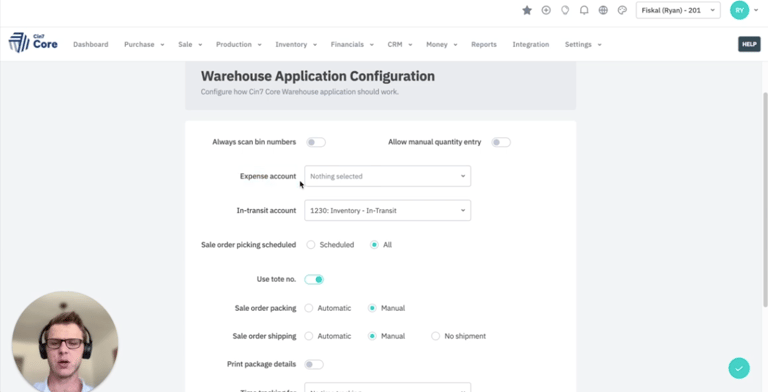
Picking schedule
All: any sales order can be picked immediately
Scheduled: limit how many orders each picker sees
Use "Scheduled" to control workload and avoid picker pile-up during peak hours.
Tote numbers
Enable this if your team uses totes or bins to organize orders. This is great for speed, traceability, and reducing pick errors.
Packing and shipping mode
Automatic: Picked orders go straight to shipping
Manual: Packing and shipping must be confirmed separately
🔍 Fiskal Insight: One client automated packing but kept shipping manual to verify weights and carriers on oversized goods, saving thousands in shipping chargebacks.
Step 4 - Set picker rules and kitting behavior
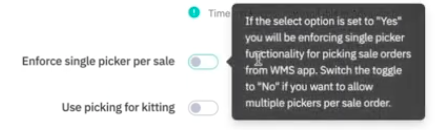
Single picker per sale
On: one picker handles entire order (best for small, simple orders)
Off: multiple pickers can collaborate (ideal for large or urgent picks)
During peak season, allow team-based picking to accelerate high-volume orders.
Picking for kitting
Problem: bundled kits get picked as one SKU, missing critical parts.
Why it matters: this causes fulfillment errors and under-reported inventory.
Solution: enable kit-component visibility during picking.
Feature: see individual kit items during pick
Advantage: prevents missed or partial kits
Benefit: accurate fulfillment and inventory integrity
Time tracking
Turn this on to measure picker/packer performance.
⚠️ Note: You must have manual packing enabled to track both pick and pack stages accurately.
Step 5 - Save settings and switch to mobile app
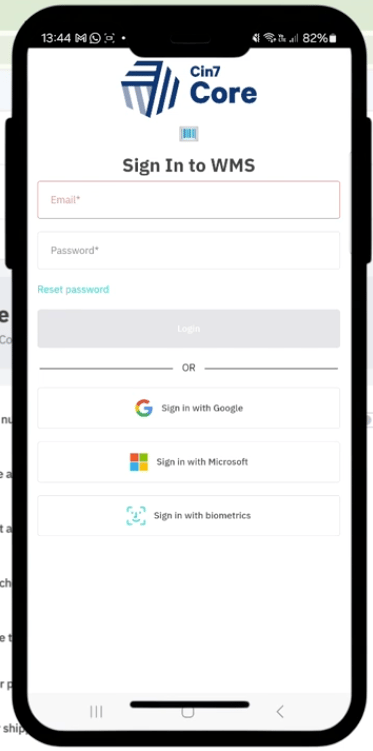
Click Save Settings, then open the Cin7 Core WMS app on your team’s mobile devices.
Log in with your Cin7 Core credentials (biometric login also available)
Confirm organization and warehouse location
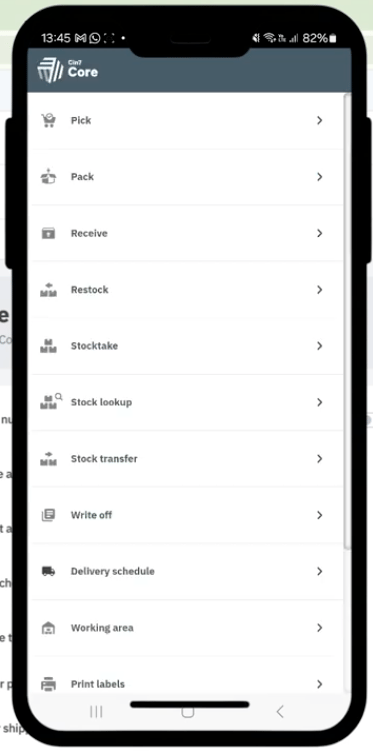
Step 6 - Navigating the WMS App interface
Once logged in, users see their assigned warehouse and available modules.
Main menu:
Pick Orders
Pack
Receive
Restock
Stock Take
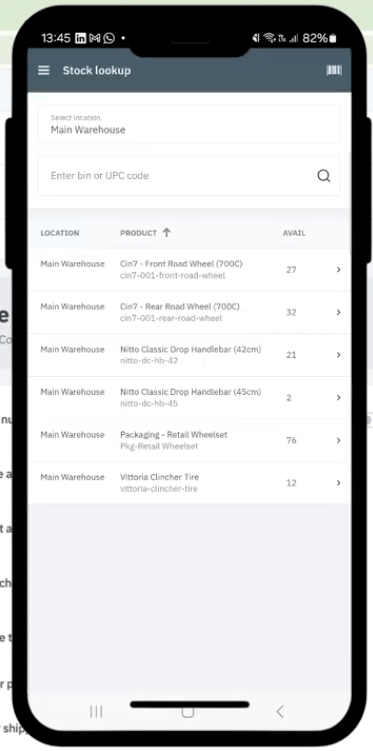
Stock Lookup
Write Off
Each module is optimized for barcode scanning and real-time syncing.
Step 7 - Use the App like a pro.
Key functions explained
Step 8 - Tips for a smooth WMS rollout
✅ Train by Role: Simulate live orders using sandbox mode to train pickers, receivers, and managers.
✅ Zone Audit Before Launch: Ensure your bin layout reflects actual shelving.
✅ Test Syncs with Accounting: Post test transactions and confirm financial systems match.
✅ Quarterly Config Checks: Software updates can quietly reset critical settings.
Case study snapshot: emergency vehicle fitters
The challenge: two warehouses plagued by mispicks and delayed shipments
The fix: bin tracking + picker scheduling + QuickBooks account mapping
The result: 40% faster pick/pack times and audit-ready inventory logs
Stop guessing. Start scanning.
Still relying on sticky notes or memory to track stock?
If your WMS setup isn’t giving you clean, real-time data, or your accounting still feels out of sync, it’s time to take control.
We’ll audit your current setup, test accounting syncs, and help you roll out faster, more accurate fulfillment, minus the guesswork.
📞 Or call us directly: (954) 415-7895
Share on your socials.


Finance Ops:
Bookkeeping
Controlling
FP&A
Industries
Why Fiskal:
About us
Customer Stories
Careers
Contact Us
Contact Details:
+1 (954) 415-7895 or +1 (267) 717-7923
info@fiskalfinance.com
Offices:
Florida
New York
Pennsylvania
Stellenbosch
Resources
Blog
The Fiskal Score
Cin7 Academy
FAQs
Privacy Policy




Cin7 Solutions:
Problems We Solve
Integrations
Report Accuracy
Forecasting & MRP
Cin7 Implementation
Cin7 Support