

How to Perform an Accurate Stock Take in Cin7’s WMS App
Run accurate stocktakes in Cin7 WMS. Follow this guide to ensure clean counts, prevent shrinkage, and reconcile inventory correctly.
TUTORIALS
Cin7 Core WMS
How to perform an accurate stock take in Cin7's WMS App
Ryan Behnken, Systems Specialist @ Fiskal


Watch a video version of this tutorial here, or continue reading below

Introduction: stock takes aren't just for the warehouse team
Ever run a profit report and something doesn’t add up?
If your inventory records don’t match your physical stock, your financials are already wrong, no matter how organized your shelves look. Stock takes aren’t just operational cleanup. They’re financial checkpoints that directly impact your COGS, asset balances and gross margin.
At Fiskal, we help brands connect warehouse routines to finance-ready data. In this guide, Systems Specialist Ryan breaks down a stock take workflow in Cin7’s WMS app, including where teams go wrong, and how to set yourself up for clean, audit-ready inventory.
Step 1 - Choose where to start your stock take
Problem: You don't know where to begin, and your count ends up fragmented.
Fix: Start from the right place depending on scope and purpose.
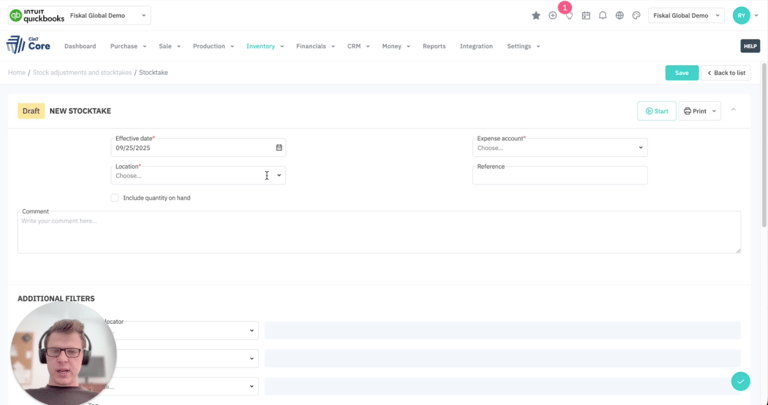
Option A: Start from Cin7 Core (Desktop)
Use this method for scheduled or finance-linked stock takes.
Navigate to Inventory → Stocktake → New Stocktake
Set the effective date
Choose the warehouse location
Assign an expense account
Apply filters by brand, tag, or category
Option B: Start from the WMS App
Use this for quick zone-level counts.
Open the WMS app
Tap Stock Take → New
Fiskal Tip: Use desktop for month-end or audit-driven counts. Use the app when you need a fast, focused spot-check or team-led cycle count.
Problem: You try to count everything at once.
Impact: You lock the whole warehouse, interrupting fulfilment and purchasing.
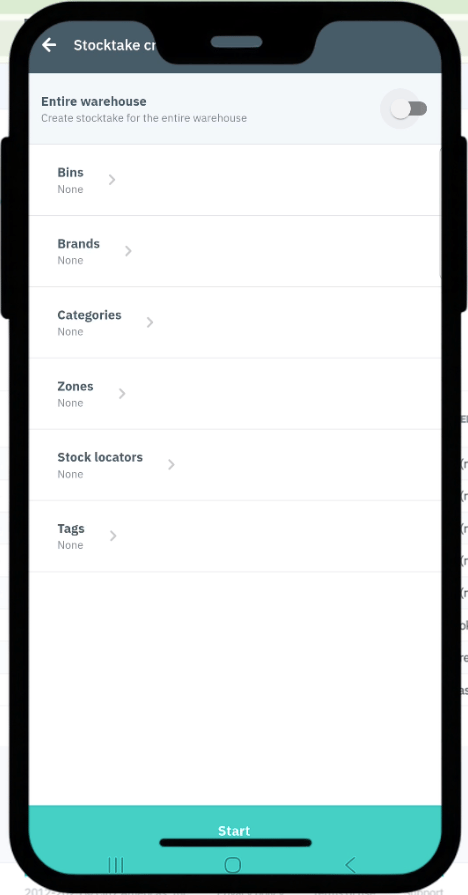
Fix: Narrow the scope using bins, tags, or categories.
In the WMS App:
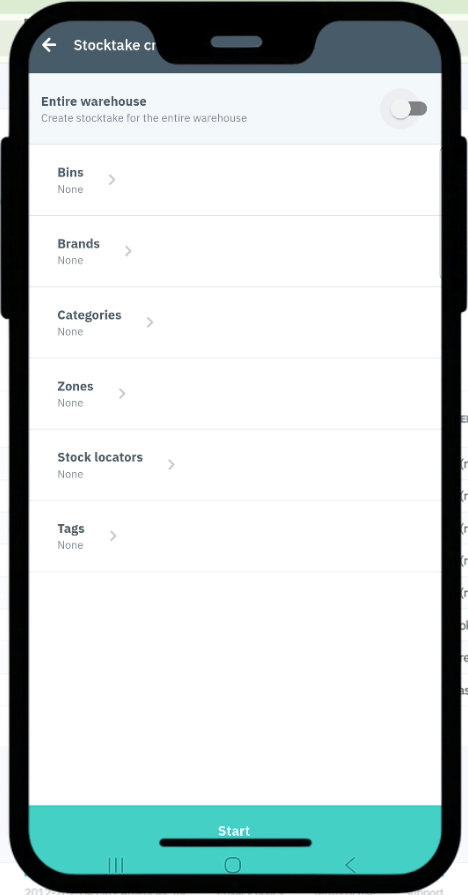
Choose what to count:
Specific bins
Assigned zones
Filter by brand or product tags
Heads-up: once a stock take starts, Cin7 locks the counted inventory: sales orders, POs and assemblies are paused until the take is completed.
Step 2 - Set scope: full location or specific zones
Step 3 - Scan and count inventory
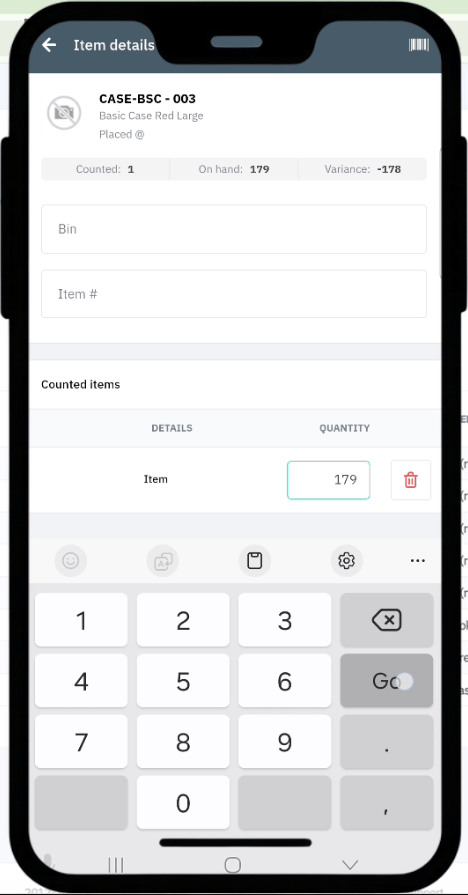
Now, go bin by bin, scanning or entering counts depending on SKU type.
Scan barcodes for serialized or high-value items
Enter counts manually for bulk SKUs (e.g., screws or cables)
Example:
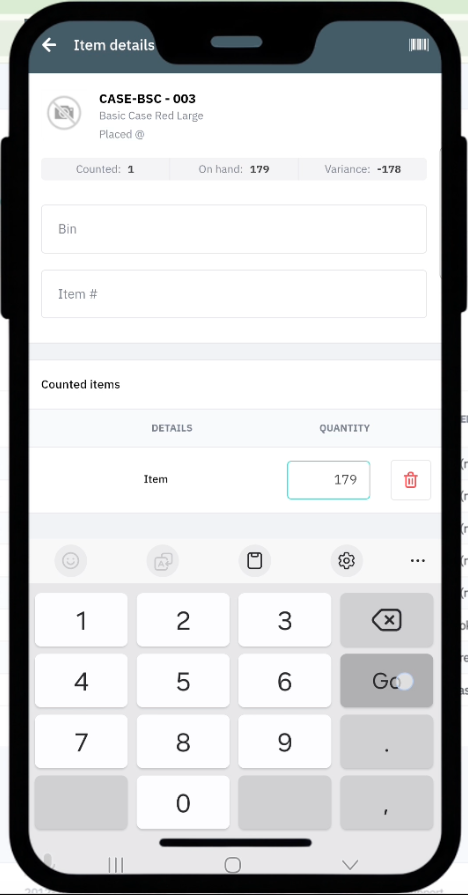
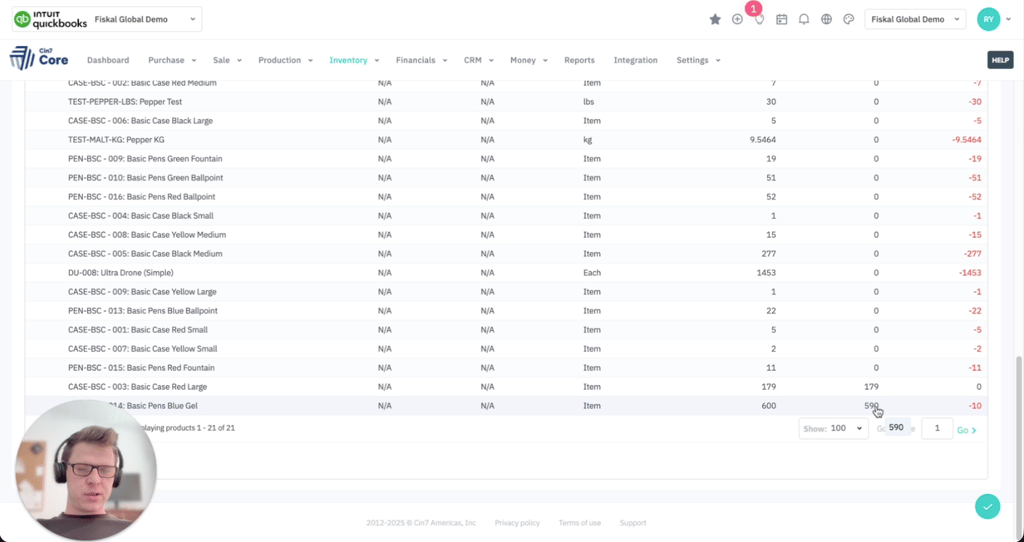
Cin7 expects 179 units. You count 590. Enter 590 and continue.
Entry mode: barcode scanning. Best for: serialized/high-value SKUs. Why it works: full traceability and audit trail.
Entry mode: manual entry. Best for: bulk or low-cost items. Why it works: fast and efficient.
Fiskal Tip: Configure WMS by zone. Enforce scanning in sensitive areas, but allow manual entry where speed matters.
Step 4 - Review variances before you finalize
Problem: You finalize without reviewing, only to find major discrepancies later.
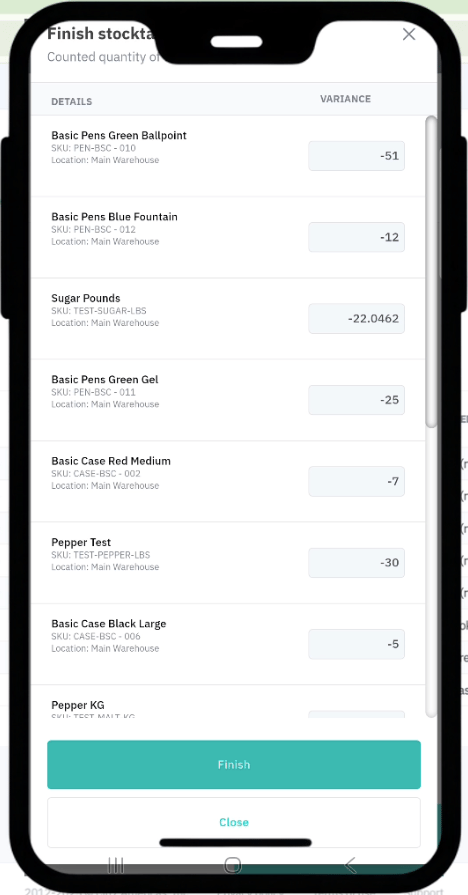
Fix: Use Cin7's variance view to review and approve before syncing.
Tap Finish
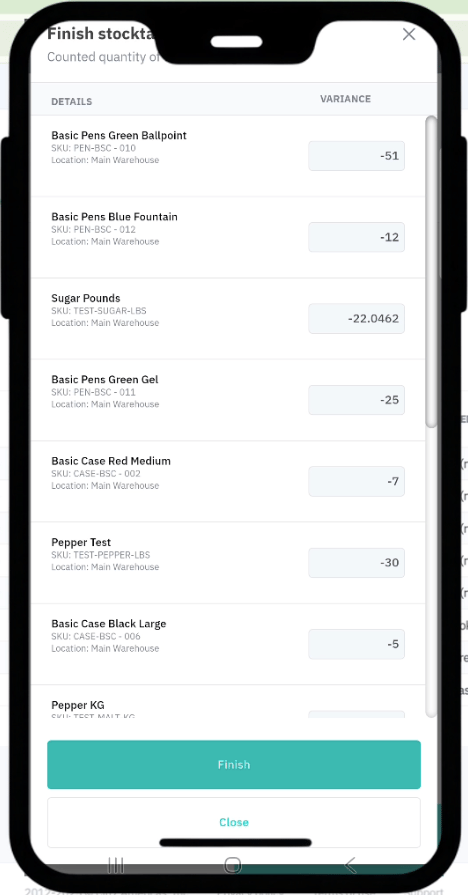
Cin7 compares expected vs. counted quantities
Review for:
Overages (inventory gain)
Shortages (write-downs)
Uncounted items (treated as 0)
Fiskal Insight: Recurring variances often signal deeper issues, like duplicate SKUs, bad bin mapping, or staff skipping barcode scans.
Step 5 - Finalize the stock take and sync to Cin7 Core
After reviewing, tap Approve in the WMS app.
Then in the desktop:
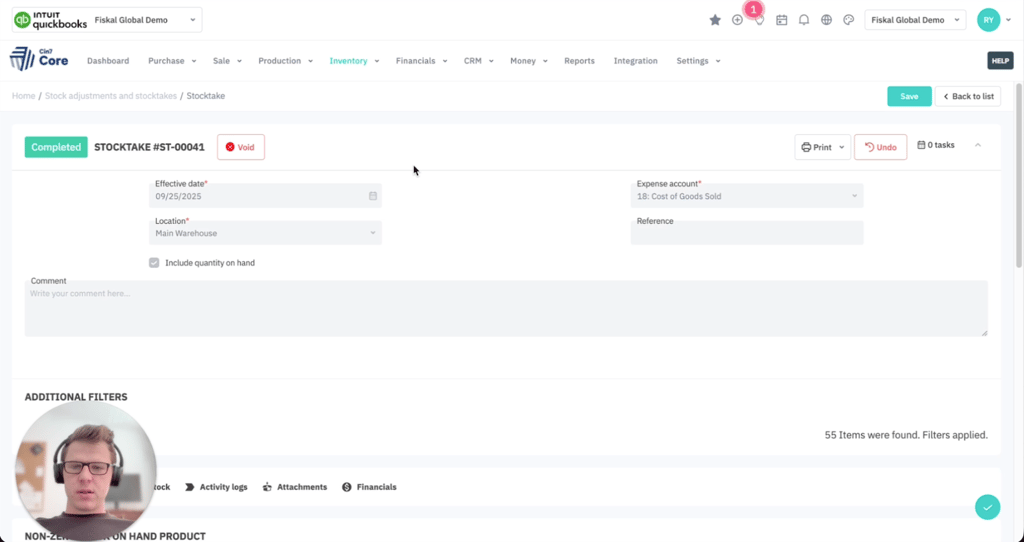
Go to Inventory → Stocktake → Completed
View system-calculated adjustments
Accounting impact:
Decreases → Booked to your Inventory Write-Off or COGS expense account
Increases → Raise your inventory asset value
Accounting Reminder: Double-check that your stocktake accounts match your COGS structure, or you could accidentally skew margin reporting.
Step 6 - Review the audit trail
After finalizing, Cin7 keeps a full log of the session.
In the desktop app:
Open the completed stock take
Review:
SKU-level variances
Who counted what
System-created adjustment entries
Example:
Expected: 600 Blue Gel Pens
Counted: 590
Adjustment: -10, linked to user and time stamp
Step 7 - Stock take best practices from the field
Mini case: $45K in variance, solved
One brand came to Fiskal with a monthly stock variance over $45,000, and no clear cause.
Fiskal fix:
Barcode audit across all SKUs
Role-based SOPs to fix handoff issues
Mandatory scan rules across zones
Outcome:
Variance dropped to <2%
Month-end close sped up by 3 days
Auditors signed off without a hitch
Fiskal insight: Bad stock takes often reveal broader system issues, like disconnected 3PLs, bad bin maps, or untrained staff. Fix the workflow and the numbers follow.
Still guessing at your inventory value?
If your stocktake results don’t match your books, or cleanup takes longer than the count itself, it’s time for a workflow review.
Our team will audit your WMS configuration, bin logic, and finance mappings, so your next count is fast, clean, and reconciliation-ready.
📞 Or call us directly: (954) 415-7895
Share on your socials.


Finance Ops:
Bookkeeping
Controlling
FP&A
Industries
Why Fiskal:
About us
Customer Stories
Careers
Contact Us
Contact Details:
+1 (954) 415-7895 or +1 (267) 717-7923
info@fiskalfinance.com
Offices:
Florida
New York
Pennsylvania
Stellenbosch
Resources
Blog
The Fiskal Score
Cin7 Academy
FAQs
Privacy Policy




Cin7 Solutions:
Problems We Solve
Integrations
Report Accuracy
Forecasting & MRP
Cin7 Implementation
Cin7 Support